Monday, May 24, 2010

Workshop 7 - Debugging Blackberry Application in Eclipse IDE

Debugging Tools:
There are different ways to troubleshoot a Blackberry application. The application can be debugged on the simulator while writing the application using Eclipse. In this example, I will debug an application that was written for previous tutorials.

To debug an application, click on the Debug menu item in the Debug menu or click F11. Choose Blackberry simulator if options come up and hit Ok.


The simulator may take a while before it starts working when the Debugger is attached. This will also open up the Console window as shown below.


On the top-right section, the Java button is selected. Clicking on the Debug button will show the Debug interface. The Debug interface is shown below.


Just below the Debug interface is the source code for the file. In this source code, we can set breakpoints as shown below.


Breakpoints allow the application to stop when it is run in the simulator at this particular point.
Below the source code, is the Console window that displays messages from JVM and also from the application. The Console window is helpful to debug application as we can display messages from the catch section of a try-catch block and print out the exception details if it is hit.

The Variables window appears next to the Debug window. When the application is run and hits the breakpoints, the variables are displayed in the Variables window as shown below.
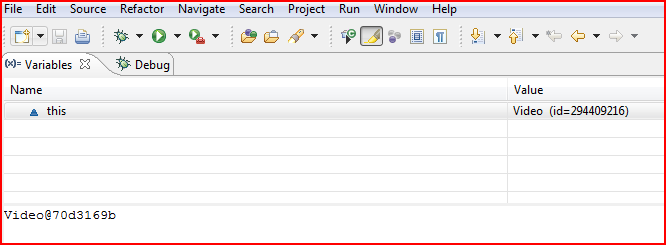


The application can be resumed by clicking on the Resume (F8) option as shown below.


Blackberry Memory Statistics
To set the memory statistics view, click on the Window > Show View > Other > Blackberry and choose Blackberry Memory Statistics View as shown below.
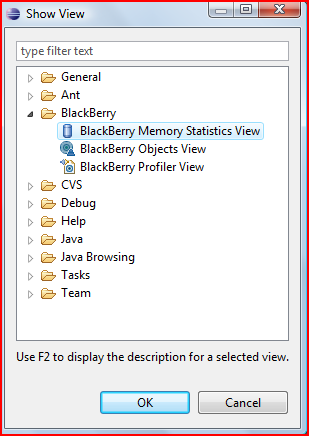

To use this, set a breakpoint and run the application. When the application pauses, click on the refresh button on the Blackberry Memory Statistics View. An example of the data is shown below.


Blackberry Objects View
This shows all the objects running from all the application. This can be viewed the same way as blackberry memory statistics by choosing the Blackberry Objects View. Typical data returned is shown below.


We can also the Garbage Collection function to check if the objects are properly deallocated.


Blackberry Profiler View
The Profiler displays information on where the application spends most of its time. It can be run same way as before by choosing the Blackberry Profiler View. Typical data returned is below.


Garbage Collection
Blackberry is Java based and it automatically frees up memory as necessary. Though garbage Collection can be called manually, Blackberry highly recommends against it.

Memory Leaks
Memory leaks can happen when the application maintains a reference to an object that is no longer needed. It can usually happen within the data structures, local variables, runtime stores and listeners. This can be very hard to detect but we can look for symptoms like the hourglass that appears as it performing garbage collection quite often.

Deadlocks
Deadlocks can happen when multiple threads are waiting for each other and hence the application gets blocked forever. The JVM can detect this issue and eventually end the application. On Blackberry, it is easy to identify a deadlock by having the “Interrupt debugger on potential deadlock” selected from the Run > Debug Configuration option as shown below.


While running the application, it will close the simulator and display the deadlock details in the Console window.

Setting up the simulator
We can modify simulator settings to work in different environments. For example, we may need to connect to a network using MDS or choose a specific model. We can change the settings by navigating to Run > Debug Configuration > Simulator as shown below.


Conclusion
Creating and debugging Blackberry applications in Eclipse IDE is quite easy as the application can be debugged and configured quite easily.

Exercise 14 - Topic 10

1) What is a spider? What does it do?

A spider, also known as crawler, robot, traverses the World Wide Web in an orderly manner. Search engines line Google uses this technology to provide up-to-date search results. The spider downloads the pages from the web, keeps a copy of the pages that is later indexed to provide quicker search.

Spiders can also perform automated maintenance tasks like link validating. It can also retrieve specific information from web pages, like the email addresses.

Using some search engine technology like the FAST search engine, we can specify the web sites to crawl. This allows for creating custom search engines that filters results by the particular web sites, typically a certain type of websites (for example, all Australian news websites).

2) Differentiate the various types of software agents:

The following are the different types of software agents:
a) Collaborative Agents: Collaborative Agents can act rationally and autonomously in open and time-constrained multi-agent environments.

b) Interface Agents: Interface agents support and provide assistance, typically to a user learning to use a particular software. The agent tracks the user using the software and suggests better ways to perform the task as needed.

c) Mobile Agents: Mobile agents are software processes capable of roaming the WWW, interacting with foreign hosts, gathering information on behalf of its owner and retrieve data and complete tasks set by the user.

d) Information/Internet Agents: Information agents have come about because of the sheer demand for tools to help us manage the explosive growth of information and it can traverse the WWW.

e) Reactive Software Agents: Reactive agents is a special category of agents which do not possess internal, symbolic models of their environments. Instead they respond in a stimulus-response manner depending on the state of the system where they are embedded.

f) Hybrid Agents: Hybrid Agents are created based to combat the disadvantages of the five other software agents.

g) Heterogeneous Agent Systems: Heterogeneous agent systems refers to an integrated set-up of at least two or more agents which belong to two or more different agent classes. A heterogeneous agent system may also contain one or more hybrid agents.

http://agents.umbc.edu/introduction/ao/5.shtml

3) Identify various activities in e-commerce where software agents are currently in use:

Examples include:
  • News sites that collect news from various websites and displays it as one.
  • Credit card comparison sites that compares various credit cards and give results with best rates, personal loans, etc.
4) Case Study: rocky

    Sunday, May 23, 2010

    WorkShop 6 - Playing Audio and Video

    In this tutorial, I will create a Blackberry application to play audio and video files using the Mobile Media API (MMAPI).

    Audio Playback
    Classes from the javax.microedition.media package will be used to play audio on Blackberry devices. This package is compatible with the MMAPI.

    Manager class

    The Manager class is part of the javax.microedition.media package and is responsible from media handling. This class is needed to get access to the system resources such as the Player for multimedia processing. The Manager class can create a Player object and it can also query the player for specific details like supported media contents.

    Content types

    Content types identify the type of the media type and are registered as the mime types. Common audio types are audio/mpeg (for files with .mp3 extension) and audio/midi (for files with .midi extension).
    We can use the method
    public static String[] getSupportedProtocols(String content_type)

    to find out which protocols specific content types support on the device we can use.


    Playing Single Tone
    To play a single tone, the following method can be used.
    public static void playTone(int note, int duration, int volume) throws MediaException

    where:
    • SEMITONE_CONST = 17.31234049066755 = 1/(ln(2^(1/12)))
    • note = ln(freq/8.176)*SEMITONE_CONST
    • The musical note A = MIDI note 69 (0x45) = 440 Hz
    • duration is note duration in milliseconds, and
    • volume is in range from 0 to 100.
    Creating a Player

    To create a player that plays audio files, the following method can be used.
    PlayerManager.createPlayer(String url);
    where the url is the location of the media file.

    Player class

    The Player class has a life-cycle consisting of 5 states – unrealized, realized, prefetched, started and closed. Once a Player is created, it is in the unrealized state. When it is created, it tries to connect to the audio file. When the system finds the source, the Player moves to the realized state. When the Player is ready to play the audio, it moves to the prefetched state. If the Player is started in this state, it enters the started state. From this state, the Player can either be moved to prefetched state or can be closed.

    Audio Sample Application

    In this example, I will create an application and play audio files from the Blackberry simulator. I will create a new project and call it AudioVideo, and add a new mp3 file as a resource. How the file is imported and the code to run the application is shown in the screen shots below.


    When the application is run, the audio file starts playing and the list of supported media types are displayed as shown below.

    Video Playback

    Video files can be played in the application using the Manager and Player classes. Videos are larger in size and should be played from the SD Card.
    Mobile devices have smaller screen and smaller files are sufficient to be played in mobile devices.

    I have added a new class called Video.java to play the video file. The code for the class is below.

    Note that, I am calling the video file from the SD Card. To set the SD Card, click on the Simulate menu, select change card and add the directory that contains the video file as shown below.


    When the application is run, the video starts playing in the simulator.

    Saturday, May 22, 2010

    Workshop 5 - Network Transport

    Overview
    Blackberry device offers a a wide range of choices for creating an application that connects with servers and other systems on the internet or in the corporate network. Blackberry hides the details of the wireless network characteristics and let the developer concentrate on the core system.

    Overview of Network Transports
    Blackberry provides a number of different ways to connect to the network including the Blackberry Enterprise Server / Blackberry Mobile Data System (BES/MDS), TCP/IP, Blackberry Internet Service (BIS), WiFi, WAP 1.0 and WAP 2.0. All these methods may or may not be available depending on how the device is configured.

    BES/MDS

    BES allows Blackberry devices to make connections to corporate network. MDS component proxies the connection and can even connect to server that are behind the corporate firewall. This makes Blackberry a good choice to be used in the corporate world. On the other hand, since all connections is proxied by the MDS, the device can only connect to websites or servers that are allowed by BES server.

    TCP/IP

    Blackberry device can make direct connection to TCP/IP if permitted by the BES administrator.

    BIS

    BIS provide users the same functionality as for BES users but has lower lever of security. Devices connected to the BES servers are already connected to the BIS. BIS also provides the proxy connection similar to the BES/MDS but it does not allow connections to the corporate network.

    WiFi

    Many Blackberry devices include WiFi networking that allows connecting to a network via a WiFi router. Once the connection is made, the device can connect to network over the WiFi.

    WAP 1.0, 1.1, 2.0

    WAP is the standard carrier network available to blackberry. Devices connect to the cell towers and then to WAP gateway typically hosted by the carrier. The carrier Internet Web Servers.

    MIDP Connection Framework

    Blackberry uses the same connection framework as defined in the MIDP framework.

    Connector

    All connections are initiated using the javax.microedition.io.Connector class. The same class is used for HTTP, HTTPS, socket and many other connection types. For example, a HttpConnection can be opened using the followuing code.
    
    HttpConnection connection = (HttpConnection)Connector.open("http://www.csu.edu.au/");
    or
    SocketConnection
    socket = (SocketConnection)Connector.open("socket://www.csu.edu.au:80");

    Connection Method:

    When making a network connection, a device automatically try to connect using BES server. If BES is not available, the device will try to connect using TCP/IP. We can also specify how a device going to connect to the network.

    To connect using TCP/IP, use the following code,

    HttpConnection connection = (HttpConnection)Connector.
    open(url + ";deviceside=true");

    To connect using WiFi, use the following code,
    HttpConnection connection = (HttpConnection)Connector.open(url +";interface=wifi");

    To connect using BIS, the application will need to be approved by Blackberry Alliance Program.

    Determining Network Availability
    Using CoverageInfo
    The net.rim.device.api.system.CoverageInfo class provides information on which connection methods are available to the blackberry device by checking the device's radio, current network coverage and service book. The main method providing the availability is the getCoverageStatus method. Different coverage values might be returned including the following:

    • COVERAGE_MDS means you can make connections using the BES/MDS connection method.

    • COVERAGE_DIRECT means you can make conections using direct TCP/IP or WAP.
    • COVERAGE_BIS_B means you can make connections using BIS.